You sign into your Gmail account, and something feels off. You may notice some emails missing, or emails that aren’t yours (spam, perhaps?) in your “Sent” folder. And you’re asking yourself, “could it be that my Gmail account was hacked?” Considering that today, 1 in 4 online accounts gets hacked, that possibility isn’t entirely out of the question.
Update: Just recently, the world was up on its feet over reports stating that almost 300 million different online account logins and passwords were compromised and have been traded by a group of Russian cyber criminals.
More than 24 million login credentials that were compromised belong to Gmail account holders, and it was reported to be one of the largest cyber attacks in the recent years.
If you suspect your Gmail account has been hacked, but you still have access to the account, here’s what you can do:
1. Before you start find and delete all the compromising info in your inbox
Time is of the essence. Take the necessary precautions to protect your inbox. Use this free tool to find exposed passwords, credit card, bank and social security numbers in your email account. This tool will remove any and all private data putting you at risk for credit card and identity theft. So if hackers hack your inbox, they won’t find what they’re looking for.
2. Check the latest logins
In Gmail, scroll down to the bottom of the page and click the “Details” link at the bottom right.
Gmail Account Hacked – Check the latest logins
A new window will open with a list of last activity on your account. Check out the details listed under Access Type (which will indicate how your account was accessed, e.g., browser, mobile, etc.), Location and Date/Time. If you see any activity listed there that doesn’t match your own activity, that may be an indication that your account was indeed hacked.
Gmail Account Hacked – Latest Activity
3. Change your password
Go here and change your password.
You’ll better protect your account from hackers if you choose a complex password that includes lowercase and uppercase letters and at least one number. If possible, add special characters like a hash or exclamation point. Make sure your new password is at least 8 characters long, and avoid using dictionary words. You might also consider using a password manager app to make it easier to manage your passwords. Here are some suggestions on 6 top password managers.
Gmail Account Hacked – Change your password
4. Check your password recovery options
Go over the account recovery e-mail and phone number on your account page and verify they were not changed.
For good measure, change the security question and answer, just in case the attacker was able to crack them. You should also verify that the recovery e-mail account wasn’t breached, as attackers often use one compromised e-mail to gain access to another.
Gmail Account Hacked – Password Recovery
5. Check other account characteristics
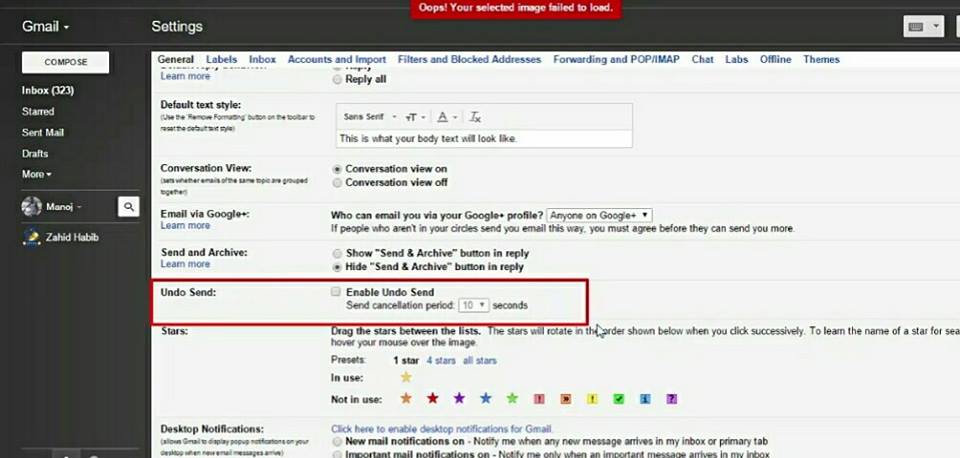
Go to your Gmail settings page. Under the General tab, verify that your “Signature” and “Vacation responder” settings were not changed. Under the Accounts tab, make sure the “Send mail as” setting wasn’t changed.
Gmail Account Hacked – Settings
Under the Filters tab, verify that filters haven’t been added, especially of your bank or other legitimate online service providers. Attackers often access a victim’s e-mail account to add these filters in order to disable notifications of money transfers and the like.
To verify that no one is forwarding your e-mail, go to the Forwarding and POP/IMAP tab and verify that a forwarding address hasn’t been set up.
Gmail Account Hacked – Email Forwarding
6. Check your other accounts
If you reuse the same password with other online accounts such as Facebook or Evernote, change the passwords on these accounts immediately. Attackers often use password reuse (an ill-advised but common practice) to gain access to more of the victim’s accounts. Check out how such silent attacks really work.
7. Run an antivirus scan on your computer
Often times, attackers gain their victims’ passwords using Trojan horses that were installed on the victims’ computers. If your machine is infected, changing the password will not help, as the malware will capture the new password and send it to the hacker. For this reason, be sure to run an antivirus scan on your computer to rid your machine of any infections. If you don’t already have an antivirus program, check out these suggestions for Best Free PC Antivirus Software.
8. Activate two-step verification
To further secure your account, enable two-step verification by going here.
With two-step verification, Google will require that you enter a unique code that will appear on the “Google Authenticator” app on your mobile, providing you with an important and effective extra layer of security. You can use a “Remember me” option to disable this step for any device, such as your laptop or smartphone, that you use regularly, which will maintain this extra security layer only on unknown devices.
Gmail Account Hacked – Two-step verification
What Do I Do If My Password Was Changed?
If you are unable to log into your e-mail account, open this form and select “I’m having other problems signing in” to try recover your Gmail account.
Think there’s a chance a hacker also got into your Facebook account? Check out our guide on What To Do If Your Facebook Was Hacked.
What Can You Do To Protect Your Accounts And Personal Information Today?
Perhaps now more than ever, it’s crucial to take a hands-on approach regarding your privacy and the security of your personal data and online accounts (Gmail, Facebook, Dropbox, etc.). Fortunately, you can use a number of freely available tools to help better protect your personal information. Here are a few suggestions:
Get LogDog, a free anti-hacking app. It protects your personal data and valuable accounts (Gmail, Facebook, Dropbox and more) and alerts you to any suspicious activity so you can take control of your account before a hacker does. The service can be used across all devices and OS’s, so you’re always being protected. Here’s the Android and iOS links for you to check out.
Get an antivirus solution for both your PC and phone. Check out these recommendations for the Best Free PC Antivirus Software and 8 Best Mobile Antivirus Apps For Android and iOS.
Never reuse the same password across multiple online accounts, and always make sure you use strong passwords that include letters, numbers, and at least one symbol. To keep track of your passwords and keep them safe and secure, use a password manager like LastPass or True Key.
Use two-factor authentication on all of your accounts to enhance security.
 😆
😆




 Tech Prabhav